Upload
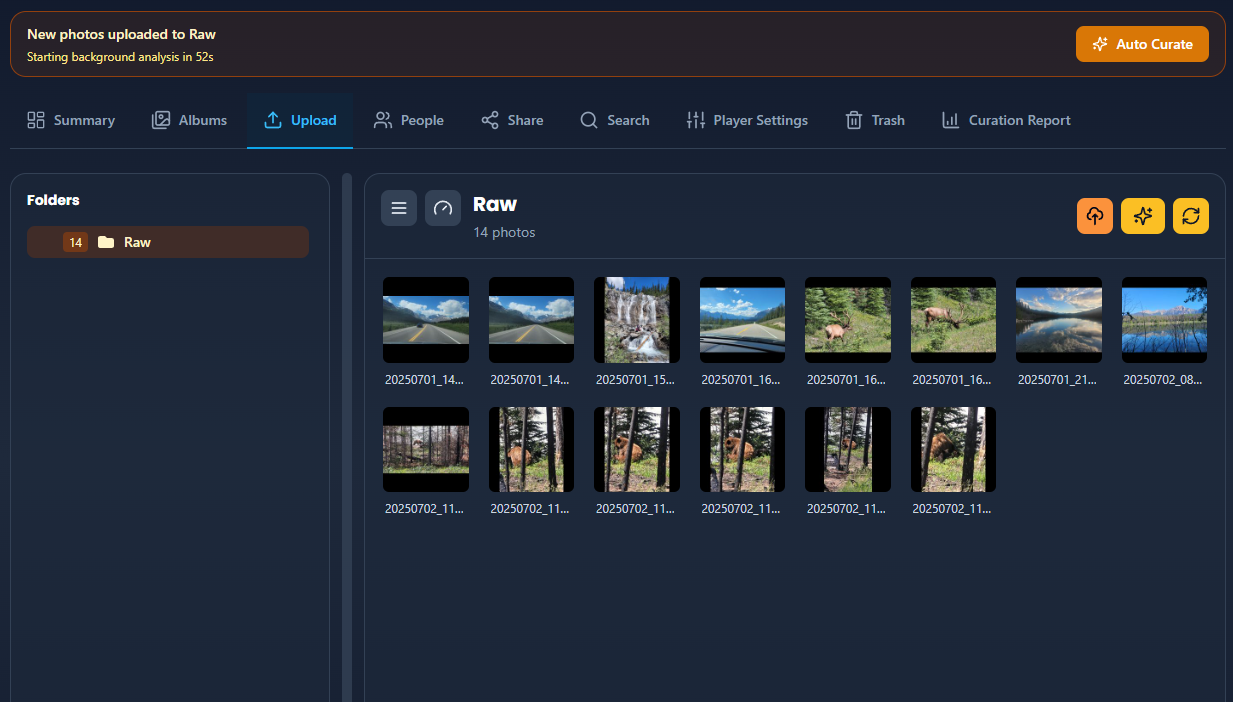
The Upload tab is how you add new photos to your cloud library on the web. Everything lands in your upload area first - then Auto Curation takes over and moves most photos into curated Albums.
You can upload from the web browser on desktop or laptop, or from the Android app (menu Upload, or share from your phone's gallery). On iPhone and other devices, use the browser at eyedeeaphotos.com - the experience is almost the same as on desktop.
On this page
- How to upload
- Upload modal and selection
- After upload: Auto Curation
- Keep EXIF and geolocation intact
- Upload limits
- Browse the upload area
- Household permissions
- Good to know
How to upload
Web (desktop, laptop, or mobile browser):
- Open Library → Upload.
- Click Upload or drag and drop photos or folders onto the page.
- Review the selection in the upload modal (see below).
- Confirm - watch the progress bar. Large batches may upload in chunks.
Android app:
The Upload tab is hidden in the Android app. Use either of these instead:
- Tap the hamburger menu (☰), then choose Upload, and pick photos from your device.
- Or open your phone's native photo gallery, select photos, and Share to Eyedeea Photos.
Upload runs in the background; Auto Curation starts when the batch completes.

Upload modal and selection
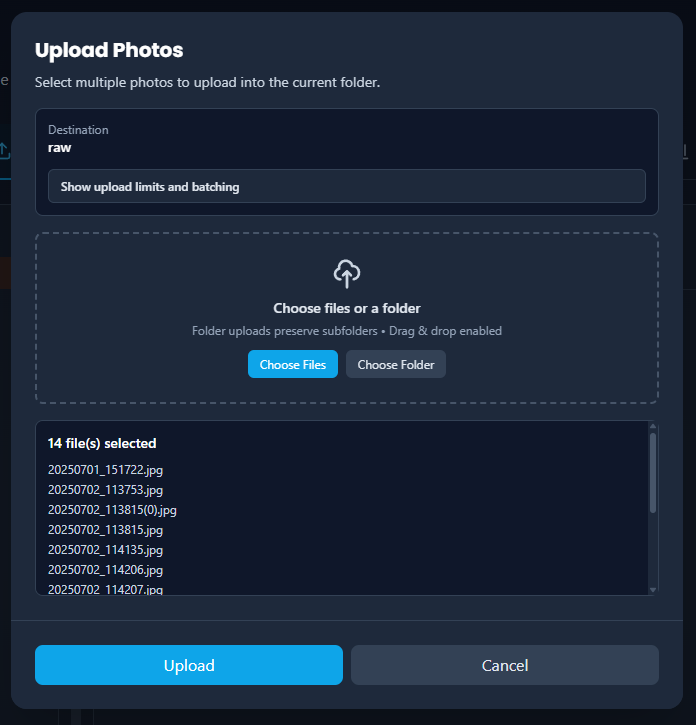
The upload modal shows every file and folder you picked before anything is sent:
- Expand folders to see individual photos
- Deselect items you do not want to upload
- Watch unsupported video files get skipped automatically
- See duplicate skips reported after upload


After upload: Auto Curation
When a batch finishes:
- A countdown banner appears above the Library tabs (about 60 seconds).
- Auto Curation starts automatically - or tap Auto Curate on the Upload tab to start immediately.
- A scan progress bar may appear while analysis runs.
- Curated photos begin appearing in Albums; cleanup tabs populate if the AI flags duplicates, blurry shots, or sensitive content.
The countdown pauses while the upload modal is still open.


Keep EXIF and geolocation intact
Eyedeea relies on EXIF metadata - especially date, time, and GPS coordinates - to organize albums, map your memories, and power Search. Without geolocation, the AI cannot place photos on a map or name events by location.
Best practices:
- Prefer the desktop browser or Android app when uploading or sharing photos.
- Avoid mobile Chrome for uploads when you can - some mobile browsers strip EXIF data (including GPS) before the file reaches Eyedeea.
- When sharing from another app on Android, use Share to Eyedeea Photos so metadata stays attached.
- Gallery apps sometimes show a capture date or map pin from the phone library even when the shared file itself has no EXIF. Eyedeea can only read what is in the uploaded file.
- In-app Upload on Android uses the system photo picker; some devices deliver a copy without GPS. Prefer Share to Eyedeea Photos from Gallery when location matters.
If photos arrive without GPS, you can still browse them - but place-based albums, search, and weather overlays will be less accurate until metadata is present.
Upload limits
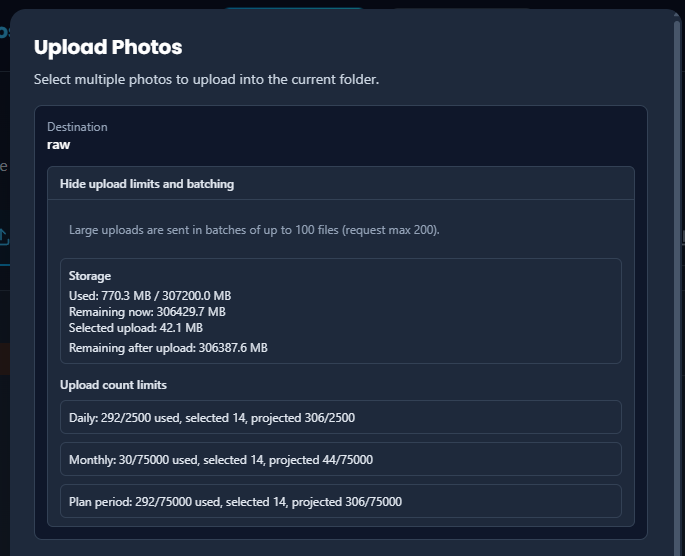
Your plan sets storage and photo-count limits. Before uploading, open Show upload limit & batching in the upload modal to see:
- How much storage you have left
- How many photos you can still add this period
- How Eyedeea will split very large batches
Limits adjust automatically when possible. If you are close to the cap, upgrade your plan.
Browse the upload area
The Upload tab uses the same browse layout as Albums. While photos wait for curation you can:
- Download selected photos (quality menu)
- Delete unwanted uploads (permission required)
- Navigate subfolders if you uploaded folder structures
Cut, copy, and paste are not available here - use Albums after curation for organizing.
You can also add photos directly into a specific curated album from the Albums tab with Upload.
Household permissions
Not everyone in a household can upload. The owner controls per-member permissions in Settings → Household Members:
- Upload - add new photos
- Download - save originals or albums
- Curate - run or manage curation jobs
- Global Filter - create filters visible to all members
If upload is disabled for your account, ask the household owner to enable it.
Good to know
- Upload is for new photos. Already-curated albums are managed from Albums.
- Very large batches are split so processing stays reliable.
- If some files fail to upload, Eyedeea reports a partial failure so you can retry the rest.
- On very small screens, Albums may be unavailable - Upload remains the primary path for adding photos on the web.
- In the Android app, use the hamburger menu → Upload, or share photos from the native gallery. The Upload tab itself is not shown.