View & Slideshow
View is Eyedeea’s fullscreen photo player - a lean-back slideshow for your library, an album, or any saved filter. It is the payoff after upload and curation: sit back and rediscover memories.
Pair View with the Weather overlay when your photos include date and GPS metadata.
Server-synchronized playback
Here is what makes View different from a local screensaver: the same photo is shown on every device at the same time.
Eyedeea tracks playback position on the server. When you open View on your Fire TV, laptop, or phone, you are watching the same synchronized queue - not independent random slideshows on each screen.
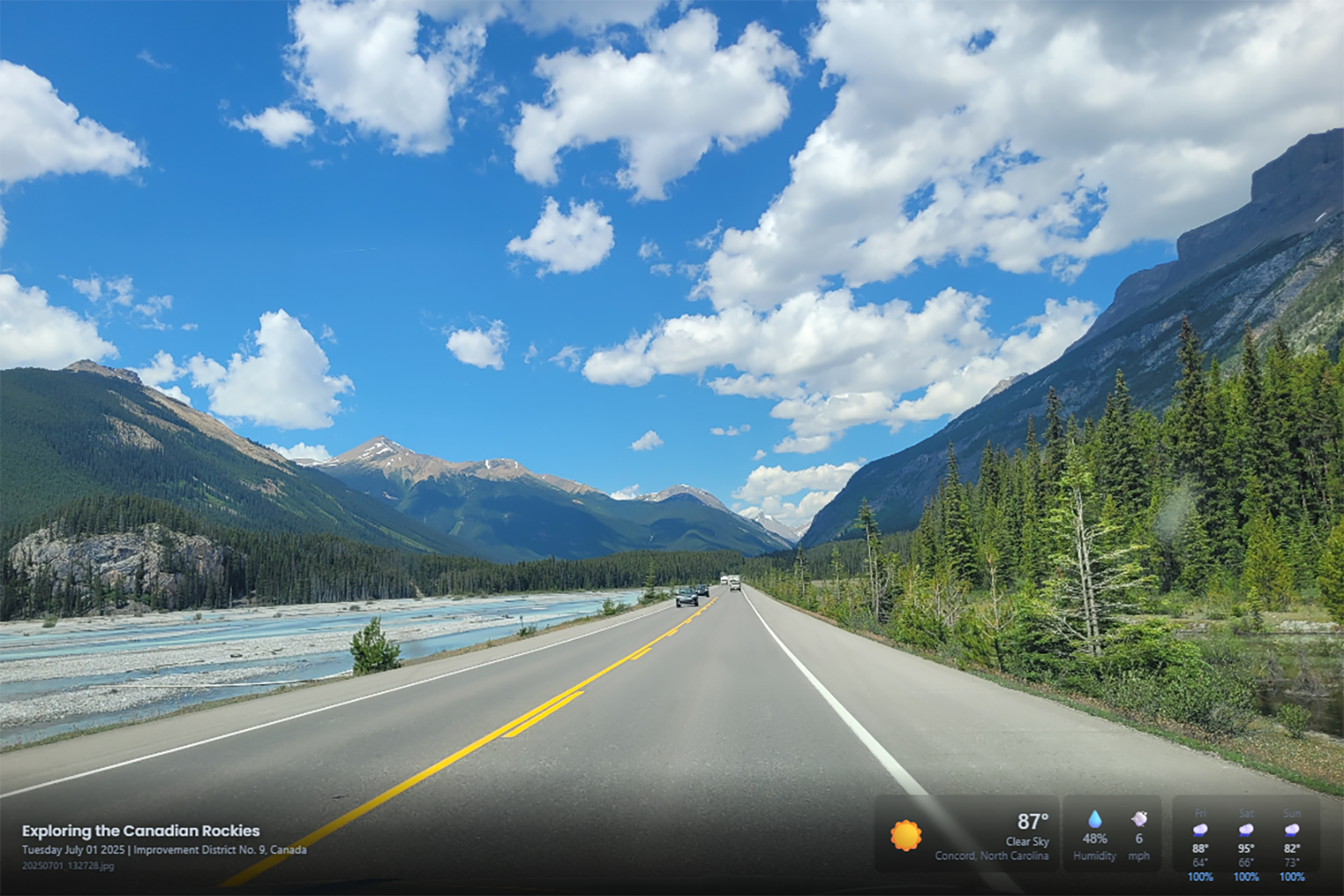
What that means in practice
- Start a slideshow on the living-room TV. Walk into the kitchen, open View on your phone - same photo, same moment.
- Pause on one device; other devices pick up the updated state on refresh.
- Change the active filter in Player Settings on desktop, laptop, or Android - view-only TV apps follow the same queue.
This is server-synchronized View - one household, one playback story, every screen.
A real-world example
You are watching old vacation photos on a large TV. A favorite shot appears - the whole family laughs. You want to share it on social media.
With Eyedeea:
- The photo is already in your library - the TV is just displaying it.
- Open the app on your phone (Android) or laptop - the full Library with the same synchronized photos, a tap away.
- Download the original or open Share to post it - full resolution, no re-upload.
Configure once. Enjoy everywhere. Share in seconds.
Starting a slideshow
From the Library (desktop, laptop, or Android only):
- Open Library and pick an album, filter, or search result.
- Click View (or the slideshow icon).
- Use on-screen controls or keyboard shortcuts for play/pause, next/previous, and fullscreen.
On TV (view-only): Fire TV and Google TV open View directly - there is no Library on those apps. Set your filter or album on a computer or phone first; the TV follows the same synchronized queue. See Fire TV.
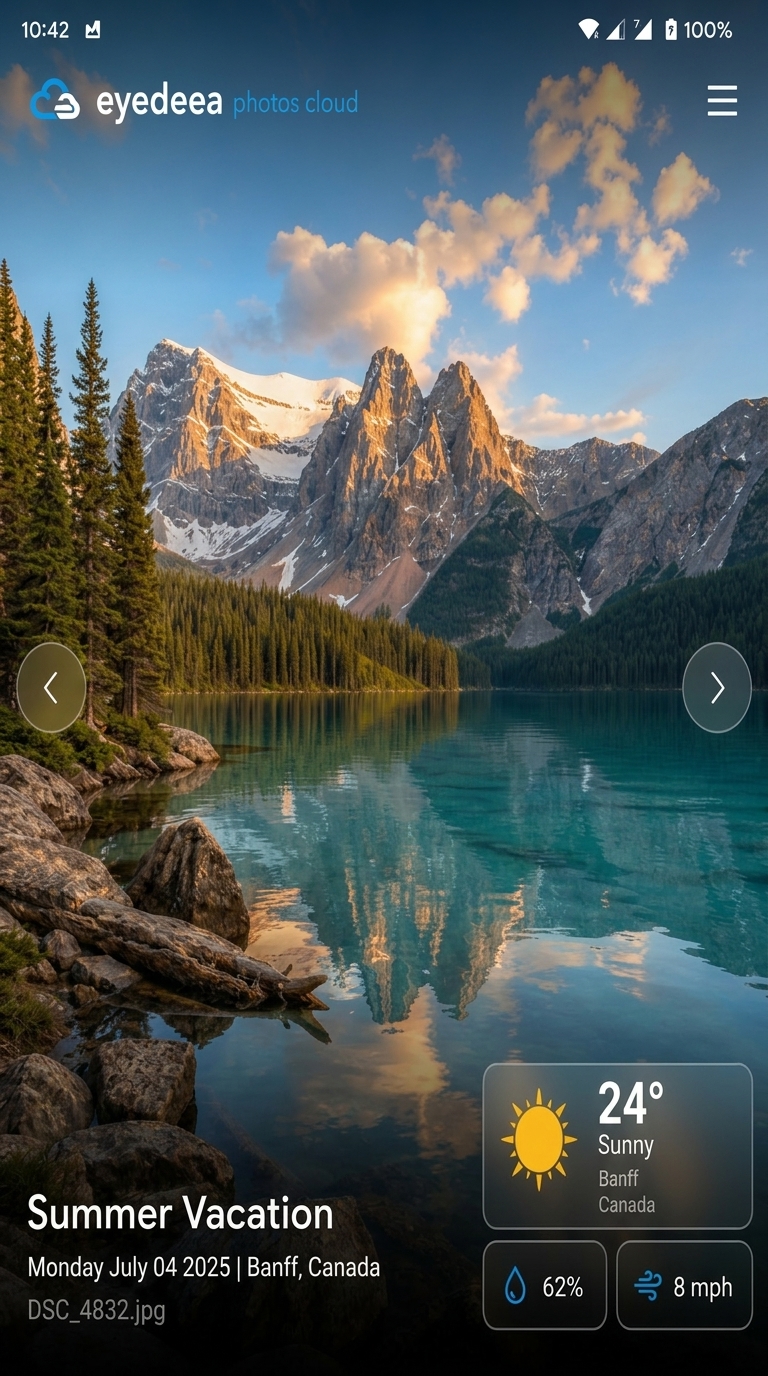
Rich context overlays
When photo metadata includes location and time, View can show:
- Weather at the moment the photo was taken - see Weather overlay
- Place context from geolocation in your photo metadata - see Search
Set how long each photo stays on screen under Settings → Slideshow timer. For filters and playback options, use Player Settings.
TV and mobile together
| Screen | Library | View slideshow |
|---|---|---|
| Desktop / laptop (web) | Yes - full Library | Yes |
| Android app | Yes - full Library | Yes |
| Fire TV / Google TV | No - view-only | Yes - synchronized queue |
| LG TV (planned) | No - view-only | Yes (planned) |
The same curated library and playback position sync across screens. Manage on desktop, laptop, or Android; lean back on TV.
Good to know
- View builds its queue from your active filter and rotation rules - set in Player Settings.
- Large libraries use smart rotation so old favorites resurface naturally.
- Household members with library access see the same photos; permissions control upload and download, not the slideshow queue itself.