Your Library
The Library - browse, upload, curate, search, and manage your photos - is available on:
- Web - desktop or laptop browser at eyedeeaphotos.com
- Android - the full Eyedeea Photos mobile app
It is not available on view-only apps such as Fire TV, Google TV, or LG TV. Those apps play the synchronized View slideshow only. Manage your library on a computer or Android device, then watch on the big screen.
After Auto Curation finishes, your photos land in the Library - the home base for everything you own, organize, and enjoy.
Think of it as your Know Your Photos (KYP) dashboard: one place to see library health, browse albums, upload more, find people, clean up flagged shots, and launch a slideshow.
On this page
- Where to find it
- How the tabs fit together
- Tabs that appear only when needed
- Web and Android differences
- When viewing a photo
- The typical flow
- One library, every device
Where to find it
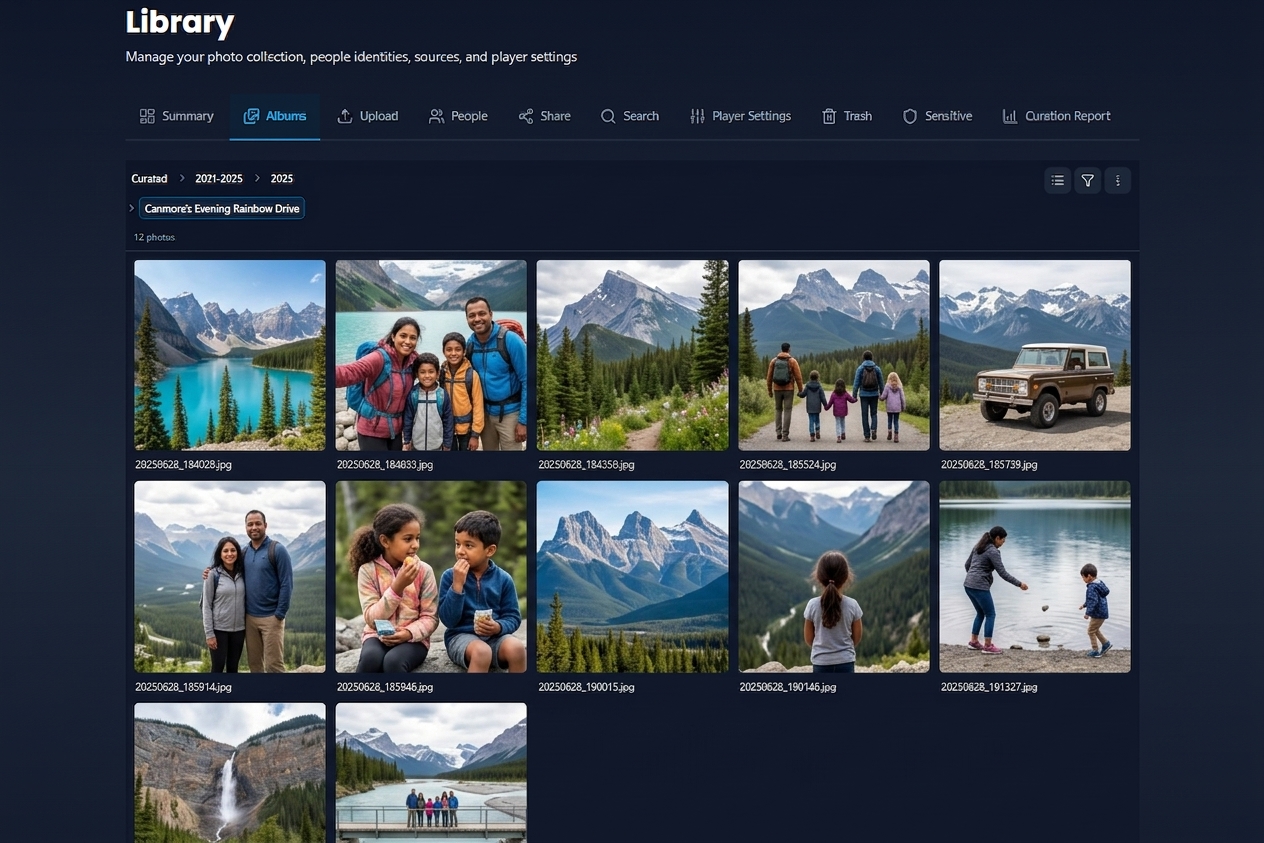
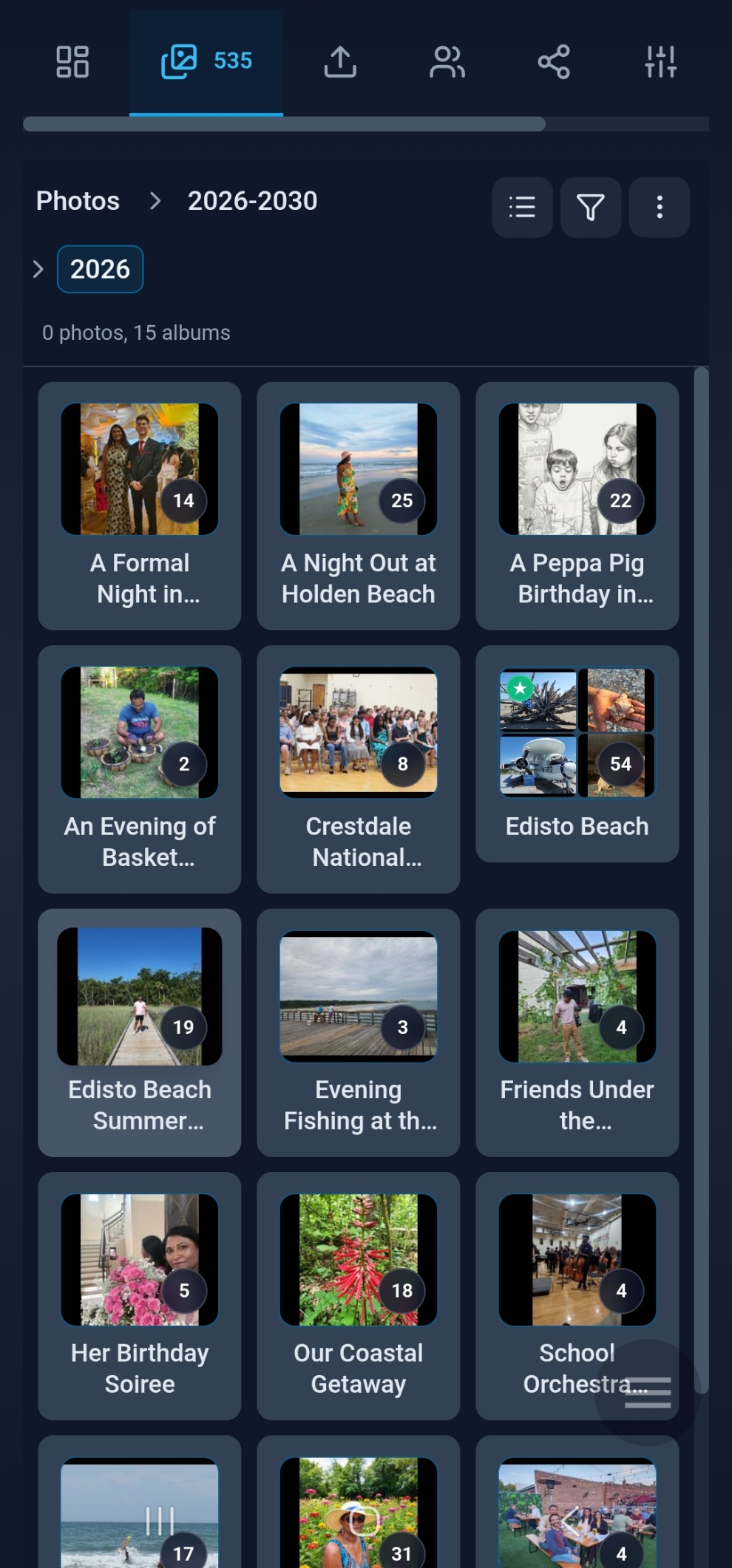
Open Library from the main navigation on desktop, laptop (web), or the Android app. The tab bar along the top switches between views. Summary opens by default.
TV apps (Fire TV, Google TV) do not include the Library - they are view-only and play the synchronized slideshow instead.
How the tabs fit together
| Tab | What it is for |
|---|---|
| Summary | Library health, storage, Action Center, and quick stats |
| Albums | Browse and organize curated albums |
| Upload | Add new photos before Auto Curation |
| People | Face clusters and named identities |
| Share | Story Packs, reels, and exports |
| Search | Find photos by keyword, place, or person (web only) |
| Player Settings | Saved filters and search for View (primary search on Android) |
| Cleanup | Duplicates, blurry, and trash review |
| Sensitive | AI-flagged sensitive content for manual review |
Tabs that appear only when needed
Duplicates, Blurry, Sensitive, and Trash do not stay on screen forever. They show up when the AI finds something for you to review:
- On mobile, each becomes its own Library tab when the pending count is greater than zero.
- On desktop, they appear as special folders under Albums in the sidebar.
- On Summary, the Action Center always lists cleanup categories - tiles show Review Now when work remains, or All good when the queue is empty.
When you resolve every item in a category, that tab or folder hides until new flags arrive after a future upload or scan.

Web and Android differences
| Feature | Web browser | Android app |
|---|---|---|
| Search tab | Available in Library | Hidden - use Player Settings search instead |
| Albums layout | Left folder tree + grid | Chips, breadcrumbs, and album tiles |
| Upload | Drag and drop, file picker (Upload tab) | Upload tab hidden - use hamburger menu → Upload, or Share to Eyedeea Photos from the gallery |
| Story Pack sync | Download ZIP on web | Sync to device for native gallery |
| Cleanup tabs | Folders under Albums + optional top tabs | Dedicated tabs when counts > 0 |
Your plan and household role may hide tabs you are not entitled to use.
When viewing a photo
Double-click or tap any photo in Albums, Search, Share, or cleanup tabs to open the full-screen Photo Viewer. Use the Photo Info panel to inspect metadata, edit captions and tags, and jump to related albums or people.
The typical flow
- Upload a batch of new photos (web, Android app, or mobile browser).
- Let Auto Curation organize them (usually within about a minute).
- Check Summary for library health and storage.
- Review any Duplicates, Blurry, or Sensitive tabs that appear.
- Browse Albums to see your curated events - rename or rearrange anything the AI got slightly wrong.
- Name people in People, build Story Packs in Share, or Search for a specific memory.
- Open View for a server-synchronized slideshow on TV, laptop, or phone.
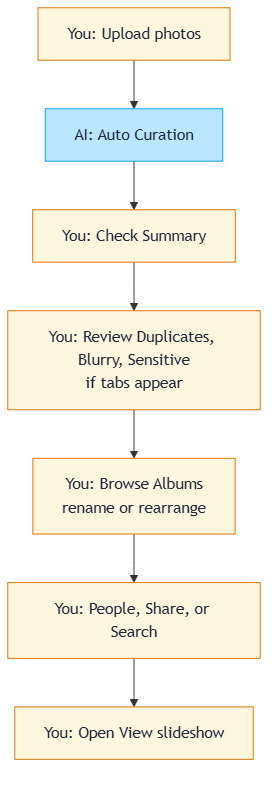
Amber steps are yours. Blue steps are automatic.
One library, every device
Your household shares a single cloud library. When curation finishes on the web or Android, the same photos appear in View on every screen - including TV - with no re-uploading and no separate copies per device. You manage the library on desktop, laptop, or Android; TV apps watch the synchronized slideshow.
Ready to enjoy memories instead of managing files? Start with Summary, then open View.