Photo Info
The Photo Info panel is the right-side drawer inside the Photo Viewer. It shows metadata for the photo you are looking at - filename, album, AI caption, location, people, tags, and more.
Open the panel with the info button at the top-right of the viewer or press i on your keyboard.
The View player (/view) has a read-only info panel. You cannot edit captions or tags, run Refresh Vision, or remove people from there. Use the library Photo Viewer for full controls.
On this page
- How to open and hide
- What you see
- What you can do
- Refresh Vision
- Remove a person from a photo
- Web and Android
- Good to know
How to open and hide
Open:
- Click the info button (circle-i icon) at the top-right of the Photo Viewer, next to the close button.
- Press
ion your keyboard.
Hide:
- Click the chevron button in the Photo Info panel header.
- Click the info button again, or press
i.
Your open or closed choice is remembered for the current browser session.
What you see
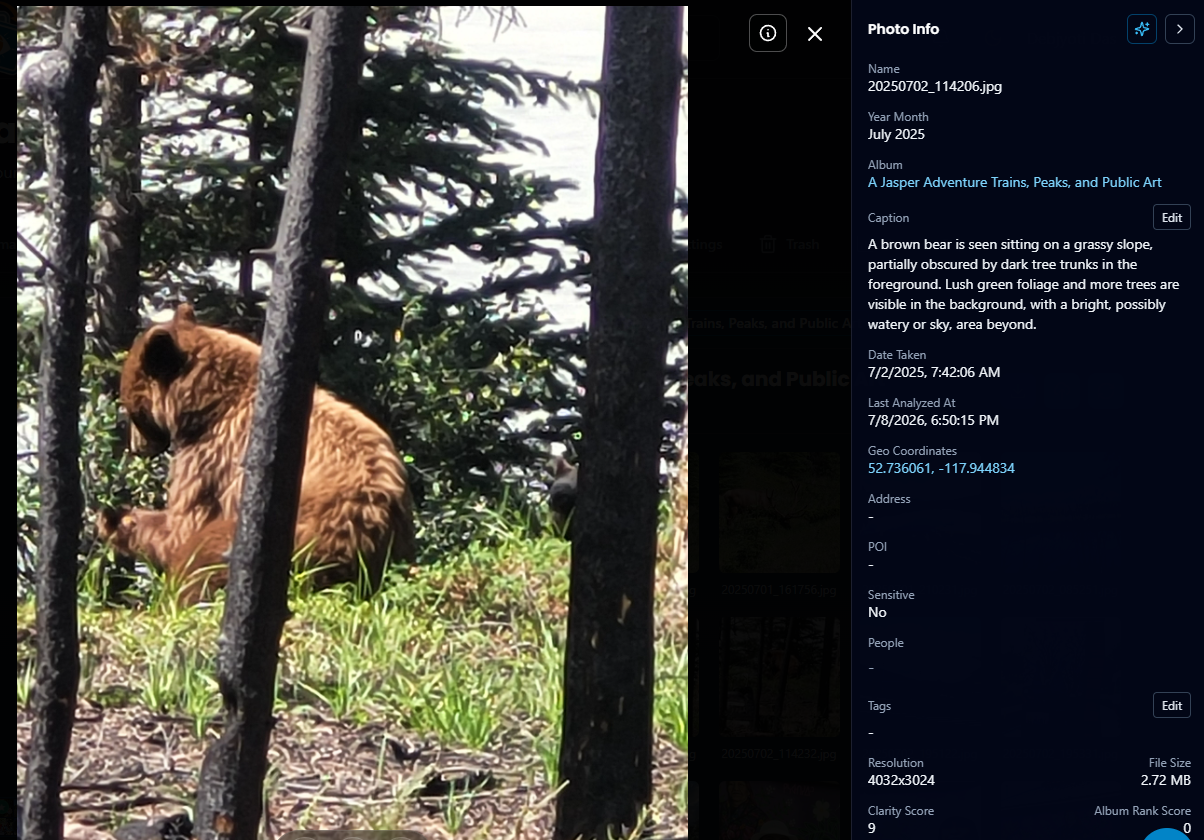
| Field | Description |
|---|---|
| Name | Original filename |
| Year Month | When the photo was taken |
| Album | Curated folder (tap to jump to that album) |
| Caption | AI-generated description (editable) |
| Date Taken | Full capture date and time |
| Last Analyzed At | When AI last processed this photo |
| Geo Coordinates | GPS location (opens in Google Maps) |
| Address | Reverse-geocoded place (opens in Google Search) |
| POI | Nearby point of interest, if detected |
| Sensitive | Whether AI flagged the photo as sensitive |
| People | Face thumbnails for recognized people |
| Tags | Comma-separated labels (editable) |
| Resolution | Pixel dimensions |
| File Size | Storage size in MB |
| Clarity Score | AI sharpness rating |
| Album Rank Score | How strongly the photo fits its album |
A footer note reminds you that AI-generated details may be missing or wrong.
What you can do
- Edit caption and tags on photos you own (not in shared albums).
- Jump to an album by clicking its name.
- Jump to a person by clicking their face thumbnail.
- Open location in Google Maps or search the address on Google.
For download, delete, and slideshow exclude actions, use the Photo Viewer bottom toolbar.
Refresh Vision
The Refresh Vision button (sparkles icon in the panel header) re-runs AI analysis on a curated photo. Use it when metadata looks wrong or after you change household AI settings.
- Available on your own curated photos only - not in shared albums.
- Processing runs in the background; the panel updates when analysis completes.
- Your plan may limit how many re-analysis operations you can run per period.
Remove a person from a photo
In the People section, you can detach a recognized person from this photo only without deleting the person from your library.
Web (desktop or laptop):
- Open the Photo Info panel.
- Hover a face thumbnail - a red X appears.
- Click X to remove that person from this photo.
Android app and touch browsers:
- Open the Photo Info panel.
- Tap a face thumbnail to focus it.
- Tap the red X when it appears on the thumbnail.
This does not delete the person cluster in People - it only removes their face link from the current photo.
Web and Android
The Photo Info panel is the same in the web browser and the Android app. Editing captions and tags, Refresh Vision, and remove-person all work in both - except in shared or read-only contexts where controls are hidden.
Good to know
- Metadata comes from Auto Curation and may be incomplete until analysis finishes.
- Shared albums show read-only metadata - you cannot edit captions or tags.
- For face naming and grouping across your library, see People.
- For sensitive content review, see Sensitive.