Settings
Settings is where you manage your profile, household members, billing, and notifications. Open it from the user menu on desktop, laptop, or Android. View-only TV apps do not include Settings.
On this page
Open Settings
- Sign in on the web app or Android app.
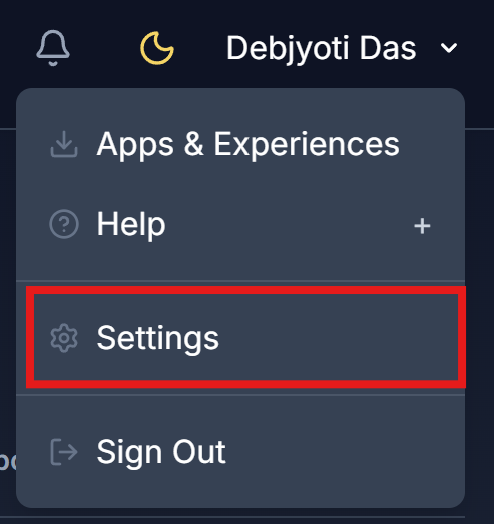
- Open the user menu (your name in the top bar).
- Choose Settings.
Settings tab
The first tab covers your account and household:
| Area | What you can do |
|---|---|
| Profile | View your email and sign-in method; edit your full name |
| Household name | Rename the household (owner only) |
| Household Members | Invite people, remove members, and set upload / download / curate / filter permissions (owner only) - see Household |
| Slideshow timer | Personal interval for View - see below |
| Change password | Update your password if you signed up with email (not Google) |
Save when you finish editing. Cancel discards unsaved changes.
Slideshow timer
Choose the shared household timer, or a personal interval of 30 / 45 / 60 seconds for how long each photo stays on screen in View.
Subscription
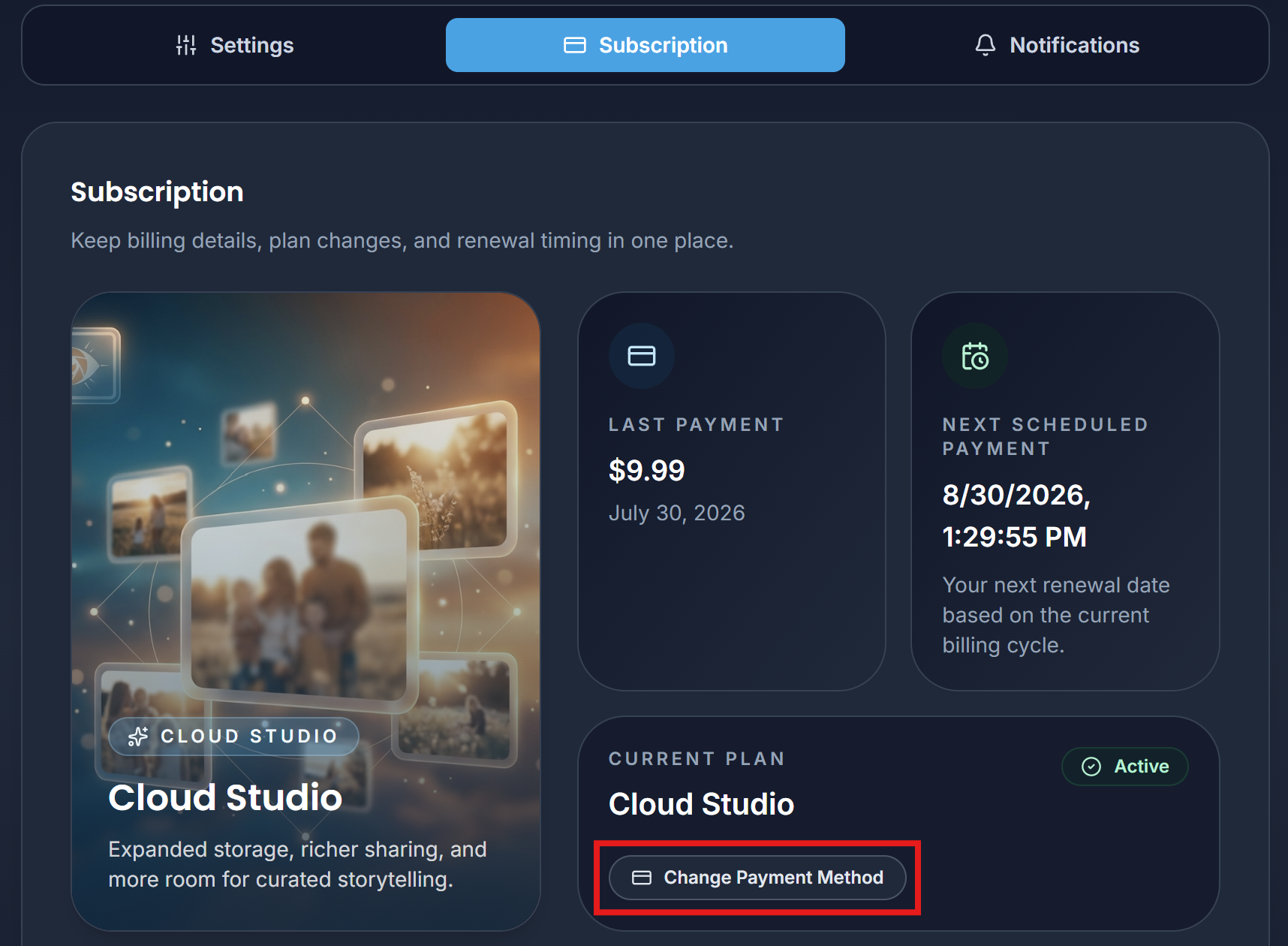
The Subscription tab is available on the website (desktop or laptop). It is hidden in the Android app - manage billing on the web instead.
| Area | What you can do |
|---|---|
| Current plan | See your plan name and status (trial, active, and so on) |
| Payment timing | See last payment and next renewal |
| Payment method | Change or add a payment method |
| Payment history | Review paid invoices and download PDFs |
| Delete account | Owners can schedule account deletion at the end of the billing period, with an optional photo export |
For plans and upgrades, see Plans & Subscriptions.
Notifications
Open the Notifications tab (or the bell in the top bar) to:
- Browse recent notifications and action items
- Filter by time and sort the list
- Mark items as read
- Complete actions when prompted
Exported Bundles
If you (as owner) started a photo export - for example during account deletion - an Exported Bundles tab appears so you can download ZIP parts before they expire.
On each platform
| Platform | Settings |
|---|---|
| Web | Full Settings, including Subscription and billing |
| Android | Same Settings for profile, household, timer, and notifications; open the website to manage Subscription |
| Fire TV / LG TV | No Settings - TVs are view-only. Link a TV from a phone or computer using the device code on screen |
Slideshow filters and search live in Player Settings under Library, not in this Settings page.