Photo Viewer
The Photo Viewer is the full-screen lightbox that opens when you inspect a single photo from the Library. Use it to browse through a folder or search results, download a shot, or open the Photo Info panel for metadata and AI details.
This is not the same as View (/view) - the server-synchronized slideshow player for TV and living-room screens.
On this page
- How to open
- Navigation
- Bottom toolbar
- Photo Info panel
- Sensitive photos
- Web and Android
- Keyboard shortcuts
- Good to know
How to open
The same viewer opens from several Library areas:
| Where | How to open |
|---|---|
| Albums | Double-click a thumbnail on web. Double-tap on phone or tablet (first tap selects; second tap opens). |
| Search | Click or tap a result thumbnail. |
| Share | Open a Story Pack, then click or tap a photo. |
| Shared With Me | Double-click or tap a shared photo. |
| Cleanup | Open a photo while reviewing Duplicates, Blurry, Sensitive, or Trash. |

Navigation
Move between photos in the current set (album folder, search results, Story Pack, etc.):
Web (desktop, laptop, or mobile browser):
- Click the left and right arrow buttons on the photo.
- Press Left and Right arrow keys on your keyboard.
- Use your browser Back button to return to the grid you came from.
Android app and touch devices:
- Swipe left or right on the photo.
- Tap the arrow buttons when they appear after you touch the photo area.
A photo counter (for example 3 / 24) shows your position in the set. Press Esc or tap the X at the top-right to close the viewer.

Bottom toolbar
A pill-shaped toolbar sits at the bottom of the viewer. Which buttons appear depends on where you opened the photo from.
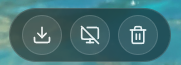
| Action | Shortcut | When it appears |
|---|---|---|
| Download | D | Albums and cleanup review folders - not in Search, Share, or shared albums. Not in the Upload tab. |
| Exclude from Slideshow | X | Curated album photos only - hides this photo from the View rotation. |
| Delete | Del | Albums and cleanup folders - not in Trash review or flag-review modes. |
Web: click a toolbar button or use the keyboard shortcut.
Android app: tap the toolbar button. Keyboard shortcuts apply when you use a Bluetooth keyboard.
Photo Info panel
The Photo Info panel is a slide-in drawer on the right. It shows filename, album, AI caption, location, people, tags, clarity score, and more.
- Click the info button (circle-i icon) at the top-right of the viewer, next to close.
- Press
ion your keyboard.
Your open or closed choice is remembered for the current browser session.
For every field, edit actions, Refresh Vision, and remove people details, see the dedicated Photo Info guide.
Sensitive photos
When AI flags a photo as sensitive, Eyedeea shows a masked placeholder instead of the image when you open it outside the Sensitive review folder. This protects privacy during casual browsing.
Open the Sensitive folder to review flagged photos with full visibility when you are ready.
Web and Android
The Android app runs the same web-based viewer inside a WebView. Once a photo is open, navigation, the toolbar, and the Photo Info panel work the same way.
| Aspect | Web | Android app |
|---|---|---|
| Open from Albums | Double-click thumbnail | Double-tap thumbnail (not while in select mode) |
| Navigate photos | Arrows, keyboard, swipe on touch | Swipe, tap arrows |
| Bottom toolbar | Always visible in browse mode | Same |
| Photo Info panel | Info button or i | Tap info button |
| Shared albums | Read-only - no edit, Refresh Vision, or remove people | Same |
Keyboard shortcuts
| Key | Action |
|---|---|
| Left / Right | Previous / next photo |
i | Toggle Photo Info panel |
D | Download (when toolbar visible) |
X | Exclude from slideshow (when toolbar visible) |
| Del | Move to trash (when toolbar visible) |
| Esc | Close viewer |
Shortcuts are disabled when focus is in a text field (for example while editing a caption).
Good to know
- Metadata comes from Auto Curation and may be incomplete until analysis finishes.
- Shared albums and Story Pack views show read-only metadata - you cannot edit captions, run Refresh Vision, or remove people.
- The View slideshow has its own read-only info panel - no editing, Refresh Vision, or remove people. Use the library Photo Viewer for full controls.
- For face naming and grouping, see People.
- For sensitive content review, see Sensitive.